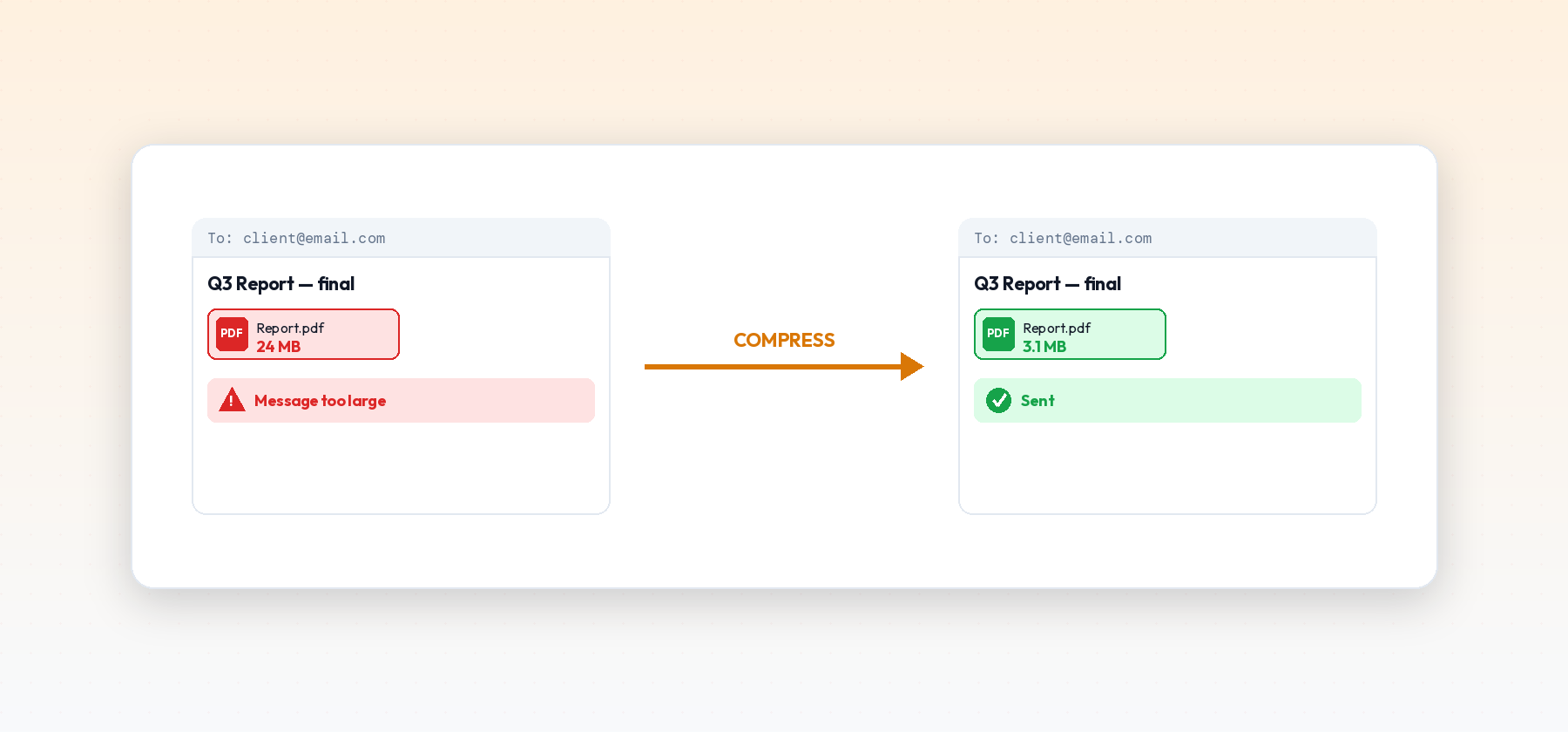
"Your message couldn't be sent because it's too large" is one of those errors that shows up at the worst possible time — right before a deadline, right when someone's waiting on the document. The good news is that fixing it almost never requires splitting the file, re-scanning anything, or asking the recipient to accept a smaller version. It just requires compressing the PDF the right way.
Why Email Has a Size Limit in the First Place
It's not an arbitrary restriction. Every email provider has to store a copy of every attachment sent and received, across every user, and that storage cost adds up fast at scale. Attachment limits are a practical ceiling on that cost, not a technical limitation of email as a format.
Roughly, most major providers cap attachments somewhere in the 20-25 MB range:
- Gmail limits attachments to 25 MB per message.
- Outlook / Microsoft 365 typically caps around 20-25 MB, though some organization-specific policies set it lower.
- Yahoo Mail allows up to 25 MB per message.
These numbers describe the encoded size of the attachment as it travels through email, which is itself slightly larger than the raw file — email attachments are Base64-encoded in transit, adding roughly 33% overhead. A file sitting right at a provider's stated limit can still bounce, because the encoded version pushes it just over the edge.
What's Actually Making Your PDF So Big
Almost always, it's the images. A PDF built from scanned pages, screenshots, or high-resolution photos can hit 20+ MB in a handful of pages, while the same document built as plain text with no images might stay under a single megabyte no matter how long it is. If you're wondering why a "simple" document is somehow enormous, check whether it contains scanned pages or embedded photos — that's almost certainly where the size is coming from, not the text.
The Fast Fix
- Run the PDF through a compressor before attaching it. A moderate compression setting typically cuts file size by 50-90% with no visible quality loss on screen — more than enough to get most oversized attachments back under a provider's limit in one step.
- Re-check the file size after compressing. Compression results vary depending on how many images the PDF contains and how they were originally embedded — confirm you're actually under the limit rather than assuming.
- If it's still too large, check for anything that doesn't need to be there. Unnecessary embedded fonts, leftover annotation layers from a previous review round, or accidentally including extra pages can all add size that compression alone won't remove.
- As a last resort, split the document. For a genuinely huge file — hundreds of scanned pages, for instance — splitting into two or three emails is a reasonable fallback if compression alone can't get it under the limit without visibly hurting quality.
When Compression Alone Isn't Enough
Occasionally a file is large enough, or needs to stay high-resolution enough, that compression can't bring it under an email limit without a real quality trade-off — a print-ready design file with dozens of full-resolution photos, for example. In that situation, it's usually better to skip email attachments entirely and share a link to the file instead, through whatever cloud storage or file-sharing service you already use. This avoids the size limit altogether, and as a side benefit, means you're not relying on the recipient's inbox having room for the size of an email server storage. It also means you can update the file later without needing to resend anything — the link, not a static attachment, tracks the current version.
A Note on Multiple Recipients
Size limits usually apply per message, not per recipient, so a 20 MB attachment sent to ten people is still just one 20 MB send from your side — the limit you need to worry about is your own outgoing cap and each individual recipient's incoming cap, not some combined total across everyone on the thread. That said, if you know a recipient is on a stricter organizational email policy (some corporate IT departments set limits well below the provider's general default, sometimes as low as 10 MB), it's worth compressing more aggressively than you otherwise would, since their inbox — not yours — is often the real bottleneck.
Checking Before You Send, Not After
The most common version of this problem is finding out after hitting send, when the bounce-back email arrives. It's worth building a habit of checking file size before attaching anything that started life as a scan or contains more than a page or two of images — right-click the file and check its properties, or just glance at the file size shown in your email client's attachment preview before sending. Catching an oversized attachment before you send it saves the back-and-forth of a bounced email, a follow-up explanation, and a second attempt.
What "Too Large" Errors Actually Look Like
The exact wording varies by provider, but a few versions of the same underlying error show up constantly: Gmail rejects the send outright before it leaves your outbox, Outlook sometimes lets the message send but the recipient's server bounces it back hours later with a delivery failure notice, and some webmail clients simply gray out the send button until the attachment is removed. The bounce-after-send version is the most frustrating, since it looks like the email went through, and the sender often doesn't find out anything failed until the recipient follows up asking where the file is.
Why Compressing Beats the Alternatives
Faced with an oversized attachment, most people reach for one of a few workarounds, and compression is usually the best of them:
- Lowering the scan resolution and re-scanning. Works, but only if you still have physical access to the original document, and it means redoing work that a compressor can do on the file you already have.
- Manually removing pages. Reduces size, but also removes content — rarely what you actually want to send.
- Screenshotting pages instead of scanning them. Often produces a larger file than a properly compressed scan, not a smaller one, since screenshots are usually saved at full display resolution with no compression applied at all.
- Compressing the PDF. Keeps every page and every word intact, and typically gets a scan-heavy document down to a fraction of its original size in one pass, with no re-work required.
Testing Whether It'll Actually Go Through
Before resending, it's worth being precise about which number matters. Compare the compressed file's size on disk — not the size shown in whatever app you used to view it, which can round differently — against the recipient's known limit if you have any reason to think it's stricter than the default. When in doubt, aim for meaningfully under the limit rather than right at the edge, since the Base64 encoding overhead mentioned earlier means a file sitting exactly at a stated cap can still fail.
Fix It in Under a Minute
The PDF Compressor runs entirely in your browser — no upload to a third-party server, no signup, no waiting. Drop in the oversized file, pick a compression level, and you'll have an attachment-ready PDF well under most providers' limits in a few seconds, with the size reduction shown immediately so you know it'll actually go through before you try sending it again.