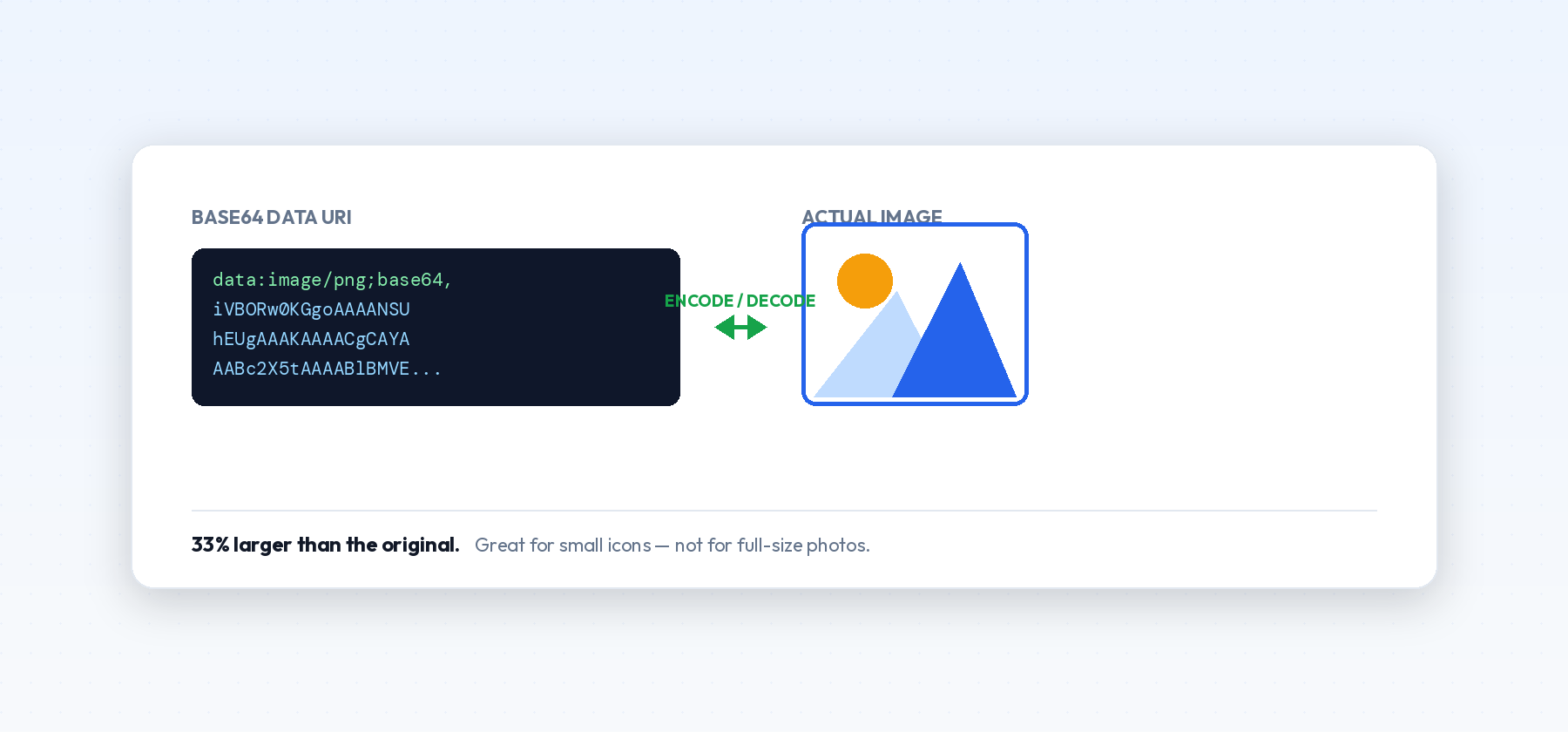
If you've ever opened a JSON API response, an email's HTML source, or a CSS file and seen a giant block of text starting with something like data:image/png;base64,iVBORw0KG..., you've run into a Base64-encoded image. Converting between the two — image to Base64, and Base64 back to a viewable image — is one of the most common Base64 tasks, and it trips people up in a few predictable ways.
Why Images Get Encoded as Base64 in the First Place
An image file is binary data. Base64 turns that binary data into plain text made of letters, numbers, and a few symbols, so it can be safely embedded somewhere that only expects text — inside a CSS background-image rule, inside an HTML <img src="data:..."> attribute, inside a JSON field, or inside an email's HTML body.
The main reason to do this is to avoid a separate network request. A small icon embedded directly as Base64 loads instantly with the page instead of triggering another round-trip to a server. For very small images — icons, tiny logos, spinners — this is a real, measurable win, especially on a page that would otherwise fire off a dozen tiny separate image requests.
The Trade-Off Nobody Mentions
Base64 text is about 33% larger than the original image file. A 30 KB icon becomes roughly 40 KB of text once encoded. For a handful of tiny icons, that's nothing. For a large photo, embedding it as Base64 instead of linking to it as a normal image file makes your page noticeably heavier — and unlike a normal image, that inflated text becomes part of your HTML, CSS, or JS itself, so it can't be cached separately by the browser the way a normal image file can. Every single page load re-downloads that inflated text as part of the document, instead of pulling a cached image from disk.
Rule of thumb: Base64-embed small, repeated UI elements. Link to actual image files for anything larger than a few kilobytes, especially photos.
Where Data URIs Work — and Where They Don't
Base64-encoded images embedded as data: URIs are well supported in modern browsers for <img> tags, CSS background-image, and inline SVG, but a few real-world gaps still catch people out:
- Email clients are inconsistent. Some strip
data:URIs entirely for security reasons, showing a broken image icon instead. This is exactly why marketing emails almost always link to hosted images rather than embedding them as Base64, even though the technique works fine in a regular browser. - Very large data URIs can hit practical limits. While modern browsers don't enforce a hard cap the way some older versions did, extremely large Base64 strings (multi-megabyte images) can slow down HTML parsing noticeably, since the browser has to parse the entire inflated text before it can even start decoding the image.
- CSS file size bloats fast. A stylesheet with several Base64-embedded images can balloon from a few KB to hundreds of KB, and that whole stylesheet has to download and parse before the page can render — even the parts of the CSS that have nothing to do with those images.
Converting an Image to Base64
- Take the raw image file (PNG, JPG, GIF, WebP — all work the same way).
- Encode the bytes as Base64 text.
- Prefix it with the correct
data:URI header so browsers know how to interpret it — for exampledata:image/png;base64,before a PNG's encoded data.
That prefix matters more than people expect — a perfectly valid Base64 string with the wrong MIME type in the prefix (say, labeling a JPEG as image/png) will often still "sort of" render in some browsers but fail or look corrupted in others.
Converting Base64 Back to a Viewable Image
Going the other direction, you take the Base64 text, decode it back into raw bytes, and save (or display) those bytes with the correct file extension matching the original format. Most decoding failures come down to one of these:
- Missing or wrong
data:prefix. If you're decoding a raw Base64 string (not a full data URI), you need to already know — or detect — what image format it is, since the string itself doesn't say. - Whitespace or line breaks inside the string. Base64 pasted from an email, a PDF, or certain code editors sometimes picks up stray line breaks or spaces. Even one stray character breaks the decode.
- Truncated copy-paste. Base64 strings for images are often thousands of characters long. If any part gets cut off when copying, the result is a corrupted, unviewable image — usually with the top portion rendering fine and the rest showing as gray or broken.
- Incorrect padding. Base64 strings are supposed to be padded with
=characters so their length is a multiple of 4. If padding was stripped somewhere along the way (some URL-safe variants do this intentionally), the decoder needs to know to add it back before decoding.
Quick Ways to Tell What Went Wrong
If a "decoded" image shows as a small gray box or fails to load entirely, that's almost always a missing/incorrect prefix, not a bad image. If the image loads but shows only the top few rows of pixels with the rest garbled or blank, that's almost always a truncated string. If decoding throws an outright error instead of producing anything, that's usually a padding or invalid-character issue — often from stray whitespace introduced during copy-paste.
A Quick Manual Test
If you want to sanity-check a data URI without any tooling at all, paste the full string — including the data:image/...;base64, prefix — directly into your browser's address bar and press enter. A valid data URI will render as the image on its own tab. If nothing shows up, or the browser shows a download prompt instead of the image, that's a strong signal the MIME type in the prefix doesn't actually match the encoded bytes, or the string itself was cut off somewhere.
When to Use a Real File Instead
Base64 embedding makes sense for small, repeated interface elements — icons, spinners, tiny logos — where saving a network request matters more than the 33% size overhead. It stops making sense once you're dealing with anything a normal visitor would recognize as "a photo": product images, blog post headers, user-uploaded content. At that size, a real image file wins on every axis that matters — it's smaller once decoded, it can be cached independently by the browser across page loads, and it can be lazy-loaded so images below the fold don't slow down the initial render.
One More Common Mix-Up: Decode vs. Decrypt
People sometimes search for how to "decrypt" a Base64 image, expecting there's a password or key involved. There isn't. Base64 isn't encryption — decoding it back to an image requires no key at all, which is exactly why it's fine for small public assets but not something you'd rely on to protect anything sensitive.
Try It Without Installing Anything
The Base64 Encoder/Decoder handles both directions for images directly in your browser: drop in an image to get its Base64/data URI form, or paste in a Base64 string to preview and download it as an actual image file — with automatic format detection, so you don't have to guess the right data: prefix yourself.